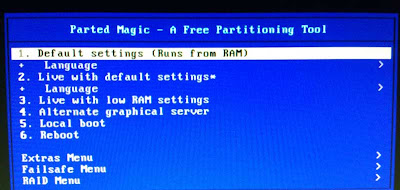
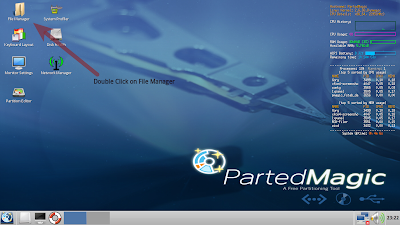
Linux is an open source platform and useful to keep your computing environment highly secured as compare to other OS manufacturers like Windows & Mac. There are many Linux distributions available to use Linux either in command or GUI mode, which mainly consists of Linux Kernel and large collection of software applications such as media player, spreadsheets, word processor, calculator etc.
Using the Live CD (Any of the Linux Distros), you can run an operating system without even installing it and start exploring all the features. So, if you’re a novice computer user or just wants to try Linux, Live media CD is there for you. You can find a list of available Live CD list and choose any desired Distros.
This article includes some of the major benefits of having Live CD at your workplace that helps you in getting out of troubles with your PC or provides secured environment while using online banking facilities and so forth.
Before telling you the benefits of having Live CD, You’d better learn first about what exactly a Live CD is and how it works?
Live CD is a ‘ready to boot’ and use or so called operating system and can able to run on whatever computer system you were using even in the absence of internal hard disk. Live CD will run from the computer’s internal memory (RAM), so avoid you to perform any write operation around the internal hard disk. Don’t worry about the saved files or programs on your computer as Live CD or DVD or Live USB doesn’t require installation and therefore, leaves the computer settings and saved files behind.
Developers and experts uses this media to test newly released Linux distributions or to heal sick PC’s. However, you can create a Linux Live CD using an ISO image file of a Live CD available on the various Linux distributions website such as Ubuntu, Knoppix or Puppy Linux. You can create bootable Linux Live CD from the downloaded image file using ISO Burner Software.
These are the three most popular lightweight Linux distributions that come with list of software packages. After downloading the ISO files from any of the aforementioned Linux distributions, you can burn it to CD, DVD or create a bootable USB flash drive.

Note: Make sure that you’ve copied all your data successfully before creating a Live CD, if you’ve chosen to test Live CD using USB flash storage media. Below are the reasons that enforces you to must have a copy of ready to boot Live CD:
Reasons #1. Troubleshoot Problems with Windows
Definitely, Windows covers the largest area in operating system market share (around 92%, rest covered by Apples, UNIX, Linux etc.) and majority of users prefer to use it either at workplace or home. However, Windows has lot of exploits and security breaches that sometimes make windows inaccessible or completely fail to start at all and the possible reasons could be registry corruption, file system damages, virus/Trojan attack etc. Now what to do to get your stored files back and fix errors? Live CD comes with unique functionality to automatically load system drivers and OS capability as well as allows users to boot and navigate around your hard disk partitions. Therefore, you can easily copy your stored files to external storage media and perform remedy actions to troubleshoot windows.
However, sometime window gives error due to off failing hardware and similar problems where Live CD might not to the magic. So if you can’t able to boot using Live CD on the failed Windows, check your hardware first and seek for professional help if the situation seems tricky and out of your reach.
Reasons #1. Troubleshoot Problems with Windows
Definitely, Windows covers the largest area in operating system market share (around 92%, rest covered by Apples, UNIX, Linux etc.) and majority of users prefer to use it either at workplace or home. However, Windows has lot of exploits and security breaches that sometimes make windows inaccessible or completely fail to start at all and the possible reasons could be registry corruption, file system damages, virus/Trojan attack etc. Now what to do to get your stored files back and fix errors? Live CD comes with unique functionality to automatically load system drivers and OS capability as well as allows users to boot and navigate around your hard disk partitions. Therefore, you can easily copy your stored files to external storage media and perform remedy actions to troubleshoot windows.
However, sometime window gives error due to off failing hardware and similar problems where Live CD might not to the magic. So if you can’t able to boot using Live CD on the failed Windows, check your hardware first and seek for professional help if the situation seems tricky and out of your reach.
Reasons #2. Recover lost or deleted files
Deleted or lost files from the Windows system have high probability of recovery as the existing file system (NTFS) tends to keep a copy of the deleted files into their MFT (Master File Table) as long as the space is not occupied by new files. Live CD could help you to recover Linux data even from the failed hard drive and similar storage device where navigating through explorer window isn’t possible. In case, the drive is physically damaged and there is no other way left to recover data, try to image the failed drive and perform data recovery from the image. Please note imaging the drive will leaves documents or files that is damaged, virus infected or lost their properties.
However, it is strongly recommended to use another storage device of same or higher capacity to copy/save the recovered files. You can find more details about step by step recovery using Ubuntu Live CD on official website.
Deleted or lost files from the Windows system have high probability of recovery as the existing file system (NTFS) tends to keep a copy of the deleted files into their MFT (Master File Table) as long as the space is not occupied by new files. Live CD could help you to recover Linux data even from the failed hard drive and similar storage device where navigating through explorer window isn’t possible. In case, the drive is physically damaged and there is no other way left to recover data, try to image the failed drive and perform data recovery from the image. Please note imaging the drive will leaves documents or files that is damaged, virus infected or lost their properties.
However, it is strongly recommended to use another storage device of same or higher capacity to copy/save the recovered files. You can find more details about step by step recovery using Ubuntu Live CD on official website.
Reasons #3. Secured Banking Using Live CD
According to recent report organized by independent agency, users has higher possibilities of losing their confidential banking details if they’re using Internet Banking online on Windows. Though, experts would never recommend to do this and suggests to use Linux if you don’t want to be a victim of phishing or internet fraud.
According to recent report organized by independent agency, users has higher possibilities of losing their confidential banking details if they’re using Internet Banking online on Windows. Though, experts would never recommend to do this and suggests to use Linux if you don’t want to be a victim of phishing or internet fraud.
As already stated that Windows were used in majority in all over the world, most hackers or bad programs tends to create and circulate malicious programs only for Windows. Malicious programs can easily got access to the victims Windows computer and makes it easier for hackers to see all the stored files, see browser history and used credentials to access online bank accounts. Whereas, non-Windows OS such as Linux have less vulnerabilities to get caught by virus and thus ensures, much safer computing environment. Live CD provides fast and easy method to convert your Windows computer into Linux and perform the desired actions. Thereafter, you can easily remove or unplug the Live CD/USB and use your Windows computer as before.
Reasons #4. Not Resource Hungry
One of the most famous Linux distributions is Puppy Linux, which runs quite well on older hardware and doesn’t demand high computer memory to run programs properly. Unlike Windows, it won’t always hangs up or freezes at a single screen and instead, provides fast output to any generated requests.
So if you’ve quite old hardware configured computer machine and doesn’t want to invest in upgrading the hardware, you could make it your Linux computer and start taking all the benefits of using Live CD.
Reasons #5. Clonezilla Live
Clonezilla live comes as a standalone Linux distributions and serves great purposes like imaging or cloning failed drive and start recovering your precious files from created copy of image or clone. Clonezilla tends to clone only used blocks inside the drive and thus, provides fast cloning environment. Clonezilla supports list of file systems for Linux, Windows & Mac.